
Connect an AI assistant to your space
Eolymp runs an MCP server for every space. MCP (Model Context Protocol) is the standard way AI assistants such as Claude and ChatGPT connect to outside systems. Once you connect one to your space, you can ask it about your contests, problems, members and submissions, and ask it to make changes.
The assistant acts on your behalf, so it can see and change only what you can in the space.
Before you start
An Eolymp account with access to the space. Permissions are described in Access management.
An AI client that supports remote MCP servers with OAuth sign-in. The steps below are for Claude, Claude Code, ChatGPT and Gemini.
Your space's Space ID.
Find your Space ID
Open Settings in the console. The Space ID is shown on the General card of the General tab, as described in Space settings. Copy it as it appears there.
The General tab appears only to people who can change the space's settings. If Settings has no General tab, ask an administrator of the space for the Space ID.
The Space ID and the Slug on the same card are different. The Slug is the name in your console URL and in <slug>.eolymp.space, and it does not work in the server address.
The server address
https://api.eolymp.com/spaces/<Space ID>/mcpReplace <Space ID> with the value you copied. Each address connects to one space. To work with two spaces, add the server twice, once with each Space ID, and name each connection after its space.
Connect a client
Each client needs the server address and asks you to sign in with your Eolymp account.
These steps are for Claude on the web and in the desktop app.
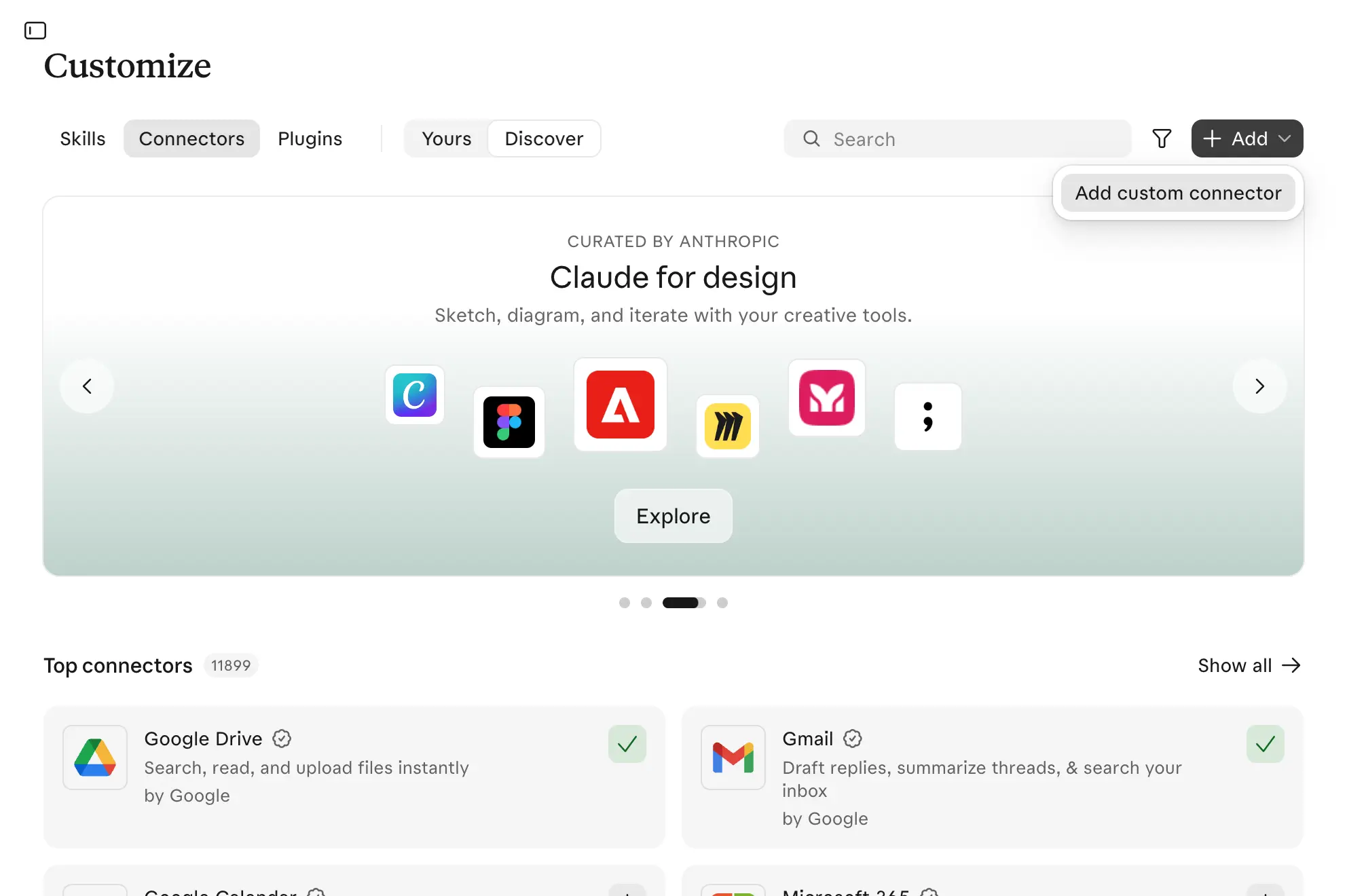
Open Customize → Connectors, click Add, then Add custom connector.
Fig 1. Add custom connector in the Add menu.
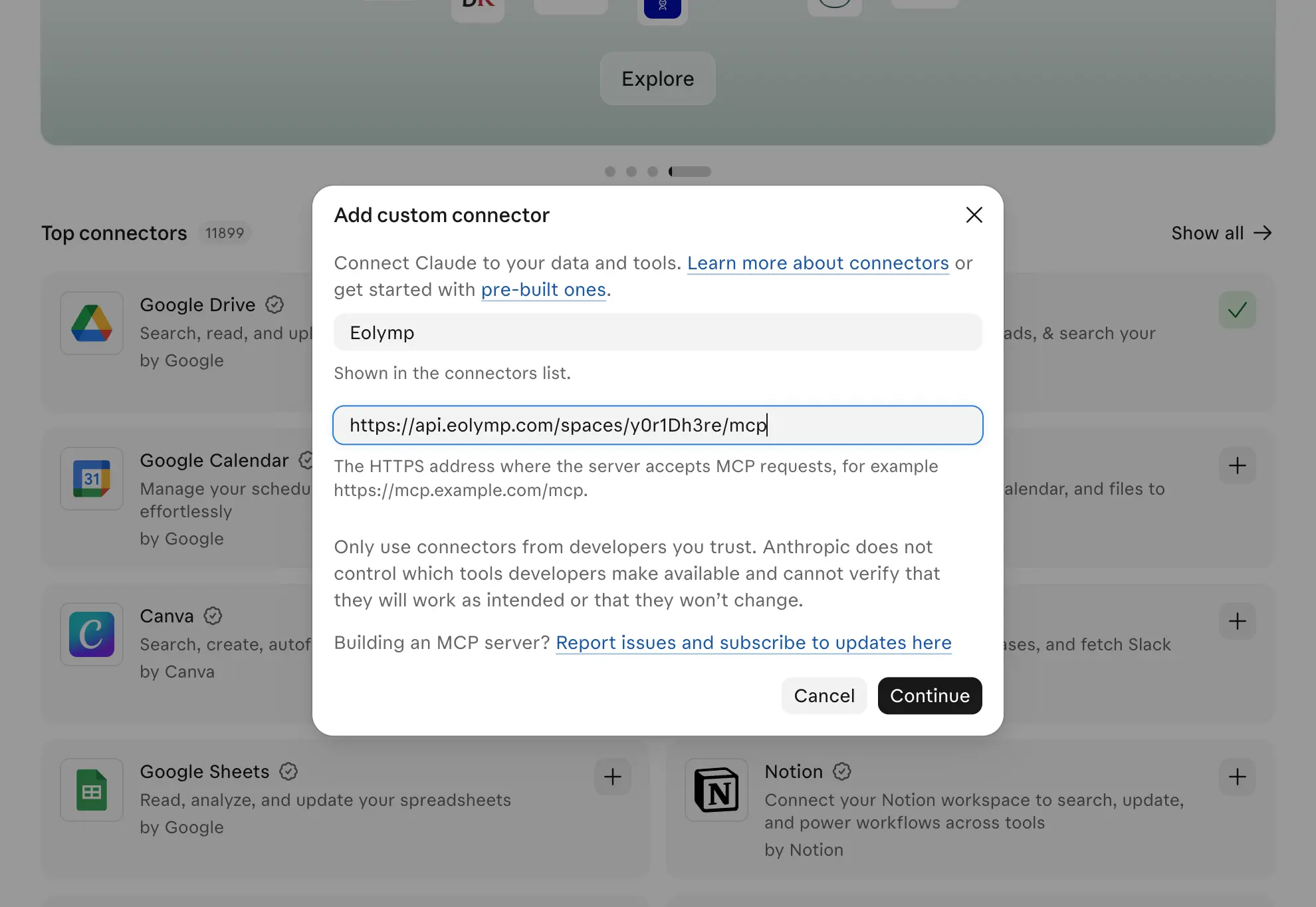
Enter a name, such as Eolymp, and paste the server address.
Fig 2. The name and the server address filled in.
Click Continue and sign in with your Eolymp account in the window that opens.
On Team and Enterprise plans, an organization owner adds the connector under Organization settings → Connectors first. Each member then finds it under Customize → Connectors and clicks Connect to sign in with their own Eolymp account.
Once Eolymp is added and you are signed in, the assistant can work in your space for you. Ask it, for example, to show the latest submissions in a contest, create a contest from problems you already have, or post an announcement. It acts with your Eolymp account's permissions, and most clients ask you before it changes anything, as described under Approve changes below.
Check that you are signed in
The server answers a connection that never signed in, using only what is public in the space, so a connection can look fine without being signed in. Ask the assistant for something only organizers see, such as a contest that isn't public yet. If it finds only what is on your space's public website, it is not signed in: see The assistant can read but every change fails under Troubleshooting.
Approve changes
Tools that only read are marked read-only, and tools that delete something are marked destructive. Most clients run read-only tools on their own and ask you before running anything else. Read what the assistant proposes before you approve it: deleting a contest or a problem and finalizing a contest's results cannot be undone.
Choose which tools to load
Many clients put the description of every loaded tool into each conversation, even when the assistant never uses it. That takes up the assistant's context and can make it slower and less accurate. To load only the tools you need, add toolset to the server address:
https://api.eolymp.com/spaces/<Space ID>/mcp?toolset=contest&toolset=scoreboardWhen the address has no toolset, you get every toolset below, plus a few smaller tools. When it has one or more, you get only the toolsets you listed. Two tools come with every connection whatever you choose: one describes the space, and one converts times between time zones.
Toolset | Covers |
|---|---|
| Space settings |
| Members, achievements, and newsletters in spaces that have them |
| Contests and their lifecycle, contest series, participants, contest problems, announcements, a contest's own pages, its scoreboard and attribute columns, submissions and rejudging, and questions from participants |
| Combined scoreboards: their contests, attribute columns and rows |
| Problems, statements, editorials, attachments, topics, submissions, testing configuration, testsets and tests, checker, interactor, validator, test script, generation runs, stress tests, reference solutions, generators, code templates and quiz questions |
| Programming languages |
| Posts, the space's pages and comments |
| Automation rules |
The problem toolset is the largest. If you only run contests, leave it out:
https://api.eolymp.com/spaces/<Space ID>/mcp?toolset=space&toolset=member&toolset=contest&toolset=scoreboardTroubleshooting
The client cannot connect to the server
The address has the space's Slug in it rather than the Space ID, or the Space ID is mistyped. Copy the Space ID from Settings again, as described under Find your Space ID above.
The assistant can read but every change fails with "unauthenticated"
The client is not signed in: it connected without signing in, or its sign-in has expired. The server lets anyone read what is public in a space, so the connection looks like it works, but nothing can be changed. Sign in again with your Eolymp account: in Claude Code, run claude mcp login <name>. In other clients, disconnect the server and connect it again, making sure you sign in.
The assistant says permission is denied
Your account does not have the permission the action needs, and the assistant acts with your permissions. Access management explains how permissions are granted, and Why a section is missing covers the common gaps.
A tool the assistant needs is missing
The address lists toolsets and the one you need is not among them. Add it to the address as shown under Choose which tools to load above, then reconnect or refresh the server in your client so it picks up the new tools.
Addresses written for older toolset names, such as contest-participant, problem-testing, post or achievement, no longer match anything. Replace each with the toolset in the table that covers it now.
The assistant is working in the wrong space
Each connection is tied to the Space ID in its address. Check which connection the assistant used and that its address has the Space ID you expect.